![How to Move Tachiyomi Backup to iOS [Step-by-Step Guide]](https://tachiyomii-apk.com/wp-content/uploads/2026/02/How-to-Add-Extensions-to-Tachiyomi-5.webp)
How to Move Tachiyomi Backup to iOS [Step-by-Step Guide]
If you’ve recently switched from Android to iPhone and are worried about losing your manga library, reading progress, and extensions from Tachiyomi — don’t worry. It’s actually possible to migrate your entire Tachiyomi backup to iOS using a compatible reader app.
In this complete guide, you’ll learn how to transfer your Tachiyomi backup from Android to iPhone and restore everything inside an iOS manga reader, so you can continue reading exactly where you left off.
What Is Tachiyomi Backup and Why You Need It
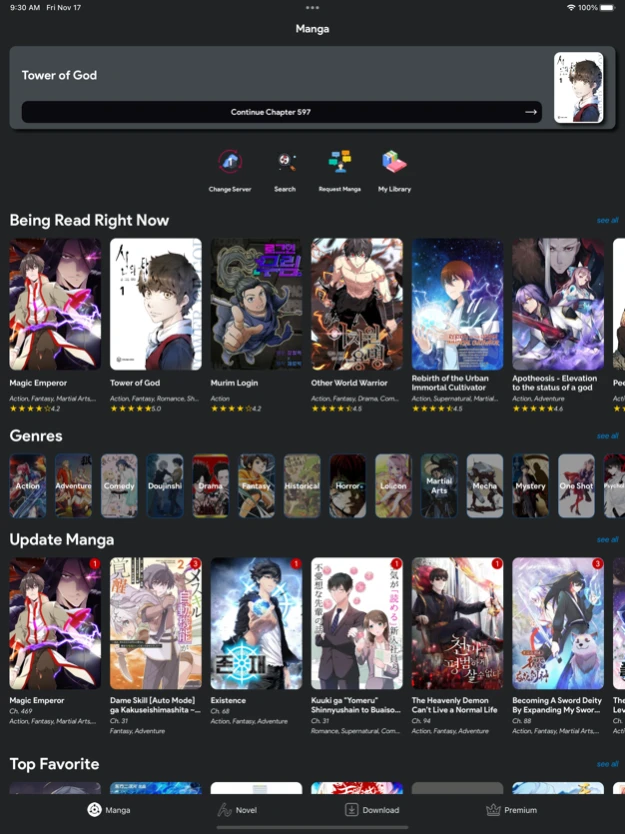
4
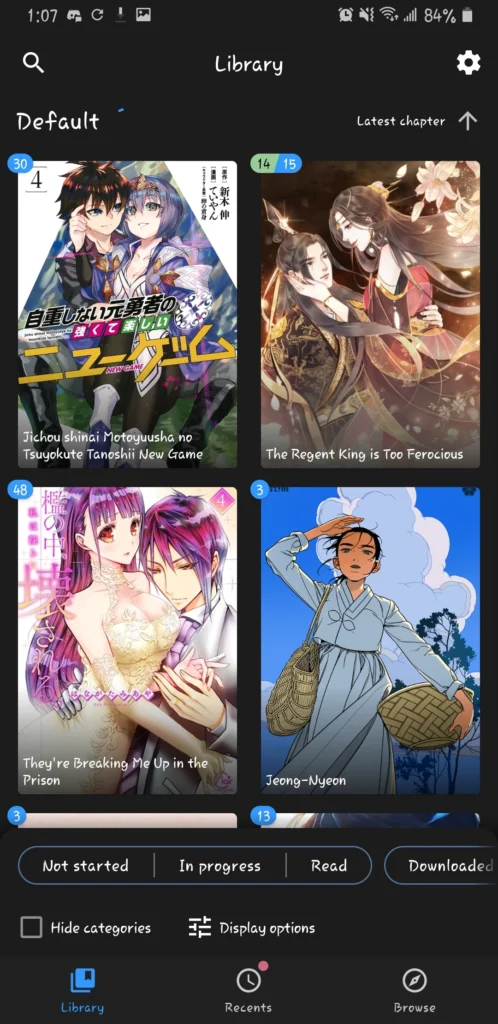
Tachiyomi is one of the most popular manga reader apps on Android. It allows users to manage manga libraries, track reading progress, install extensions, and download chapters for offline reading.
Because Tachiyomi is not available on iOS, many users think switching to iPhone means losing their entire manga collection. However, Tachiyomi allows you to export a backup file that contains your library data, categories, and progress.
With the help of a compatible iOS manga reader app, you can import this backup and restore your collection on iPhone.
Can You Use Tachiyomi on iOS?
Tachiyomi itself is Android-only, so it cannot run on iPhone. But some iOS manga reader apps support importing Tachiyomi backup files. One such app is TachiManga, which is specifically designed to read Tachiyomi backups on iOS devices.
This makes it possible to migrate your entire manga setup from Android to iPhone without starting over.
Step 1: Install a Tachiyomi-Compatible Manga Reader on iPhone
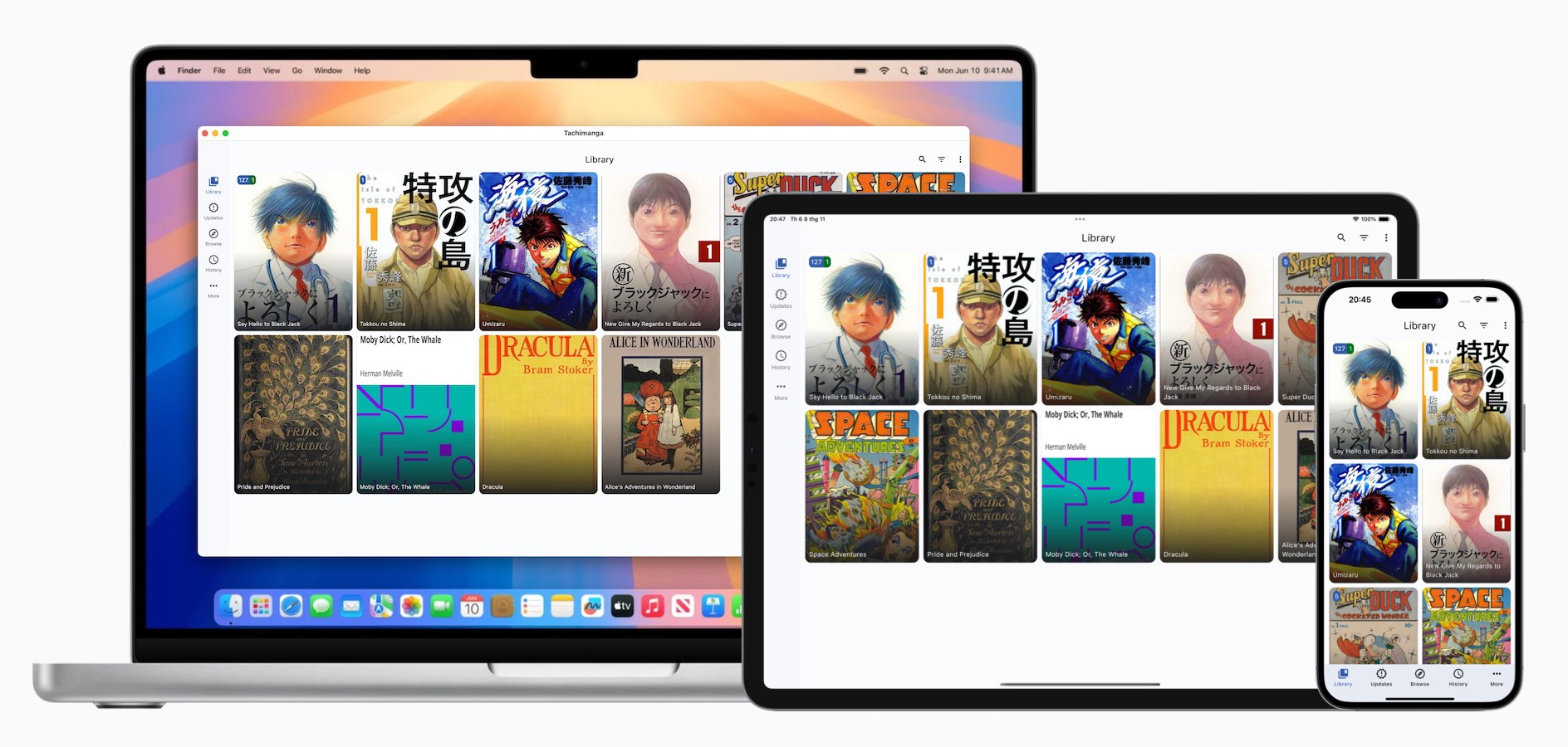
4
The first thing you need to do on your iPhone is install a manga reader that supports Tachiyomi backups.
Search for TachiManga in the App Store and install it. Once installed, open the app to make sure it launches correctly.
This app acts as the iOS replacement for Tachiyomi and will be used to restore your backup file.
Step 2: Transfer Your Tachiyomi Backup from Android to iPhone
Before restoring, you need to move your backup file from your Android phone to your iPhone. The backup file usually has a .tachibk extension and is created from Tachiyomi’s backup feature.
You can transfer this file using several methods:
- Cloud storage (Google Drive, Dropbox, etc.)
- Email attachment
- File transfer apps (like Send Anywhere)
- Direct share between devices
In the original process, the backup file was transferred using a cross-platform file-sharing app, which is one of the easiest methods for Android-to-iPhone transfers.
Once transferred, make sure the file is accessible from the iPhone’s Files app.
Step 3: Import Tachiyomi Backup into the iOS App
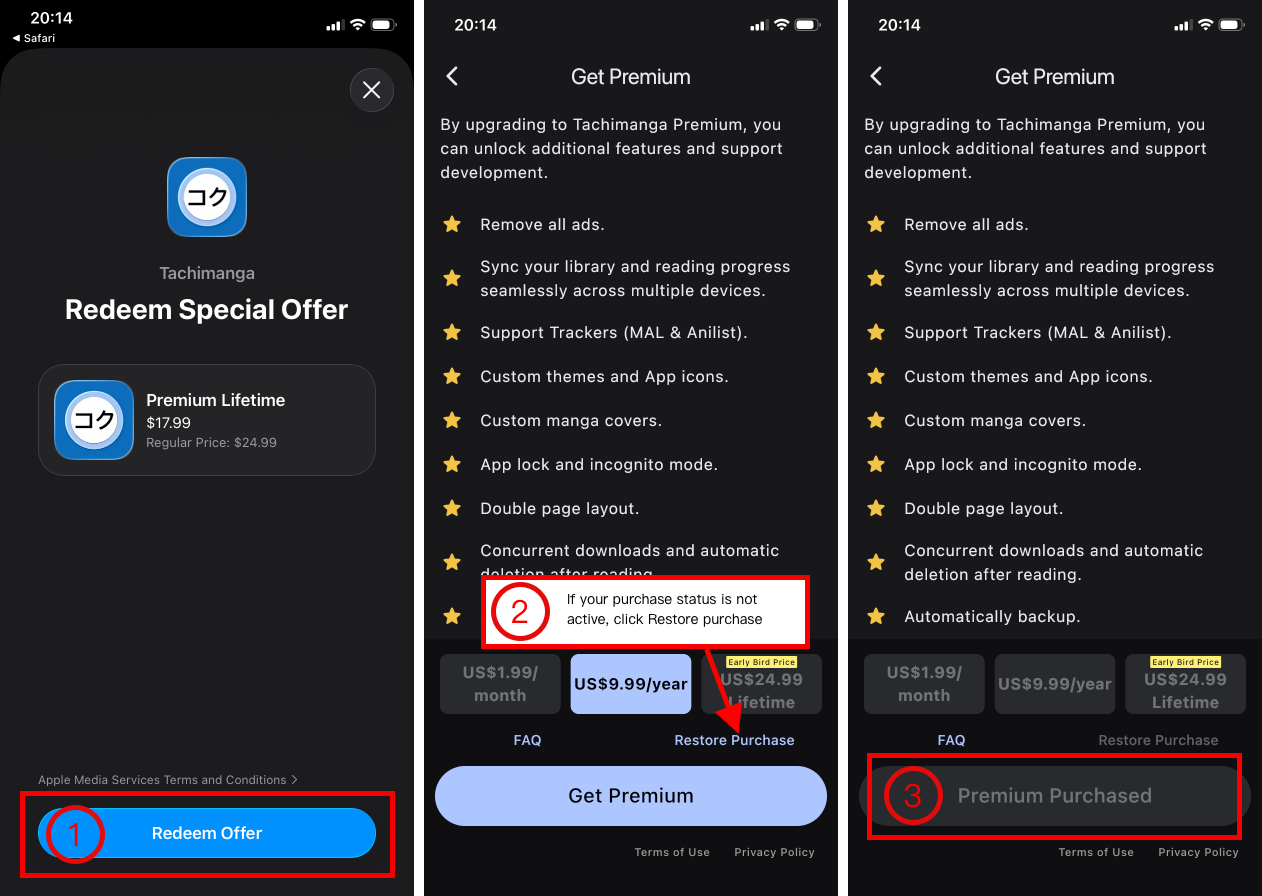
4
Now that your backup file is on your iPhone, you can restore it inside the manga reader app.
Open TachiManga and navigate to the app’s menu or “More” section. Inside the settings, look for the Backup & Restore option. There you will find an option labeled something like Import Tachiyomi Backup.
Tap this option and select the backup file you transferred earlier. The app will show a confirmation popup asking whether you want to restore the data. Confirm the action to begin the import process.
The restoration may take some time depending on the size of your library.
Step 4: Restart the App to Complete Restoration
After the import finishes, the app will prompt you to restart. This step is important because it reloads the database and applies all restored data.
Close and reopen the app when prompted. Once the app reloads, your manga library, reading progress, and categories should appear just like they were on Android.
What Gets Restored from a Tachiyomi Backup
When you import your Tachiyomi backup into an iOS-compatible reader, most of your reading environment is preserved. This typically includes your manga library, categories, chapter history, and reading progress.
However, extensions may behave differently because Android and iOS handle sources differently. Some sources may need to be re-enabled or refreshed inside the iOS app.
Common Issues and Fixes
Sometimes users think the restore failed when the library doesn’t appear immediately. In most cases, this is resolved by restarting the app after import.
Another common issue is selecting the wrong file. Make sure you choose the .tachibk backup file and not the Tachiyomi folder itself.
If manga covers or chapters don’t load, refreshing sources or re-syncing inside the app usually fixes the issue.
Final Thoughts
Moving from Android to iPhone no longer means losing your Tachiyomi manga collection. By exporting your Tachiyomi backup and importing it into a compatible iOS reader like TachiManga, you can migrate your entire library and continue reading seamlessly.
The process involves three main stages: installing the iOS reader, transferring the backup file, and restoring it inside the app. Once completed, your manga collection should look almost identical to your original Tachiyomi setup.
If you’re planning to switch devices or already moved to iOS, this method ensures your reading progress and library stay intact — so you never lose your place in your favorite manga again.