Tachiyomi Download for PC (No Emulator Required)
Are you looking to download and install Tachiyomi on your Windows 11 PC without using any emulator? You’re in the right place! In this guide, we’ll walk you through a simple and effective method to run Tachiyomi APK on your PC using the official Windows features—no third-party emulators required.
Looking for step by step tachiyomi apk pc installation visite here tachiyomi apk pc
Step 1: Enable Required Features on Windows 11
Before installing APK files, make sure two essential features are enabled:
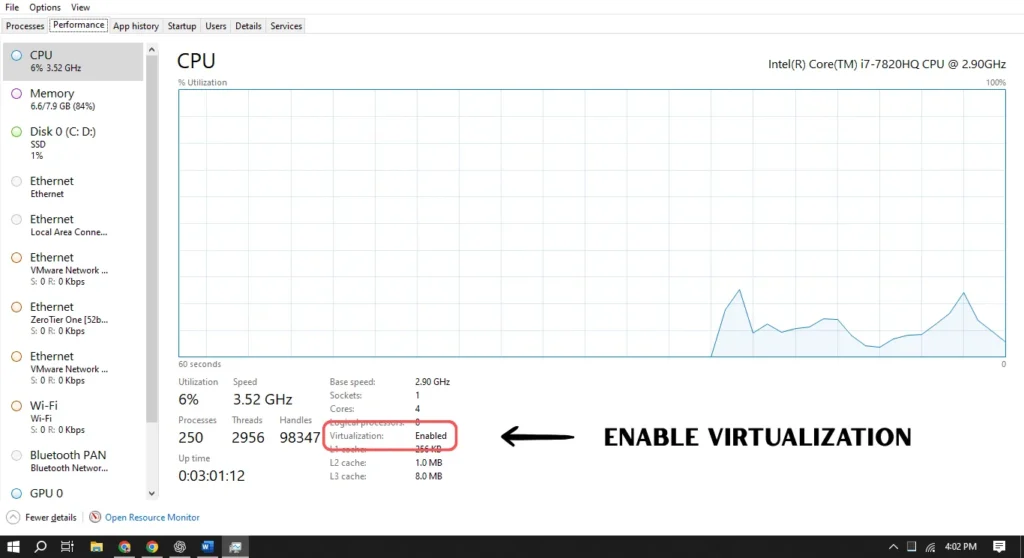
1. Enable Virtualization
- Open the Task Manager (
Ctrl + Shift + Esc) and go to the Performance tab. - At the bottom, check if Virtualization is “Enabled”.
- If it’s Disabled, restart your PC and enable it from your BIOS/UEFI settings.
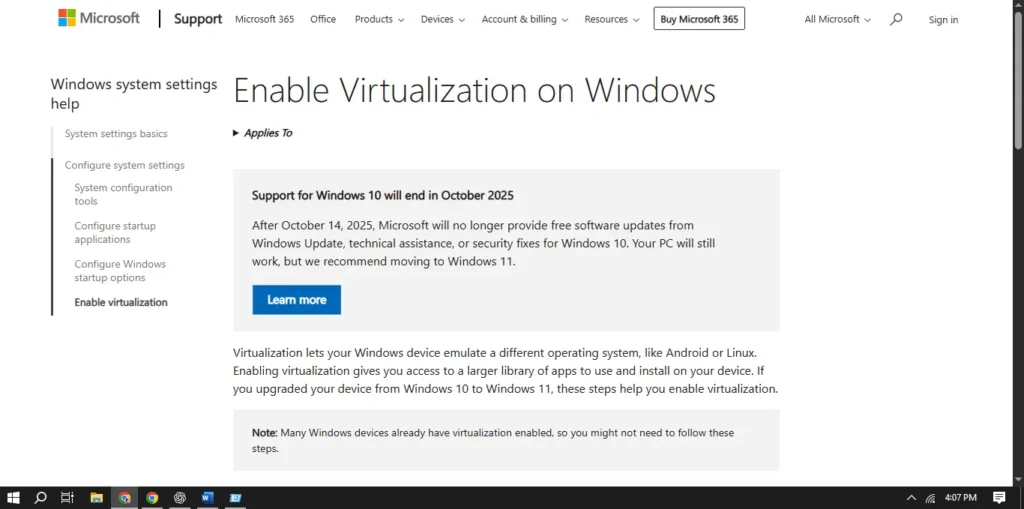
2. Enable Virtual Machine Platform
- Press
Win + R, typeoptionalfeatures, and press Enter. - Scroll and check “Virtual Machine Platform”.
- Click OK, then restart your PC.
Step 2: Install Windows Subsystem for Android (WSA)
How to Get WSA:
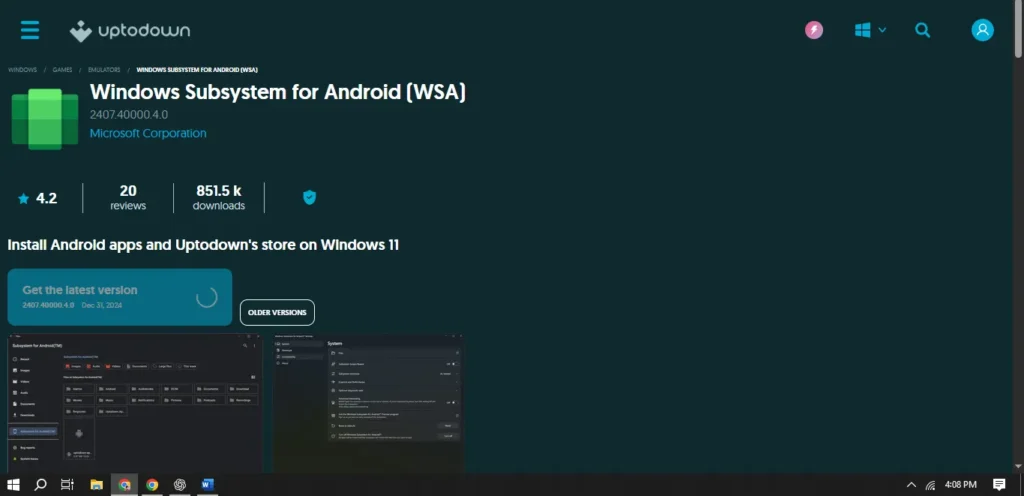
- Open the Microsoft Store and search for “Windows Subsystem for Android”.
- Install it like any regular app.
Enable Developer Mode:
- After installation, open WSA from the Start menu.
- Go to the Developer tab and turn on Developer Mode.
Step 3: Install Tachiyomi APK on Your PC
Here are 3 simple methods to install the Tachiyomi APK on your Windows 11 system:
Method 1: Using WSA PacMan (Graphical Installer)
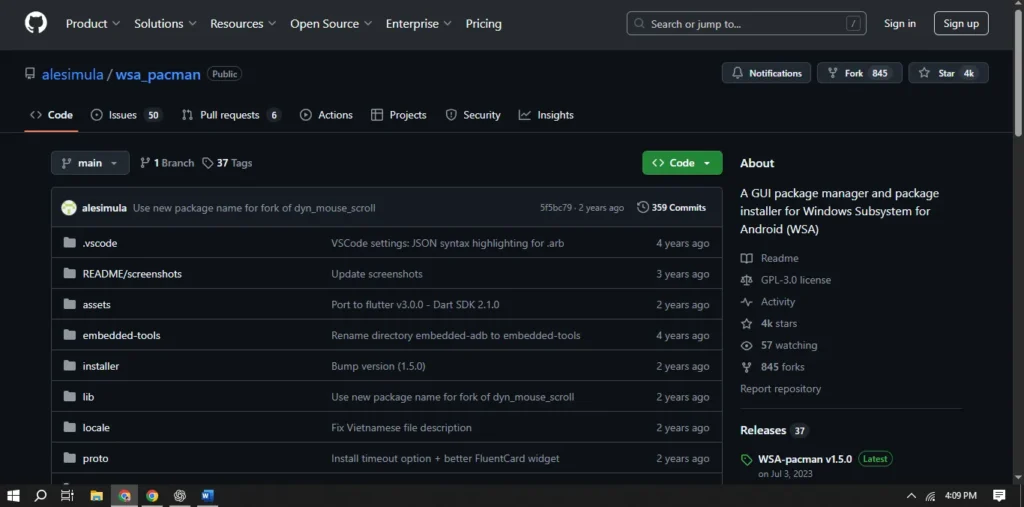
- Download and install WSA PacMan from its official site.
- Open WSA PacMan. If it shows “Disconnected”, make sure WSA and Developer Mode are active.
- Double-click the Tachiyomi APK file to install it.
- Once installed, the app behaves like any Windows app:
- You can pin it to the taskbar.
- Uninstall it from Settings > Apps.
Method 2: Using APK Installer from Microsoft Store
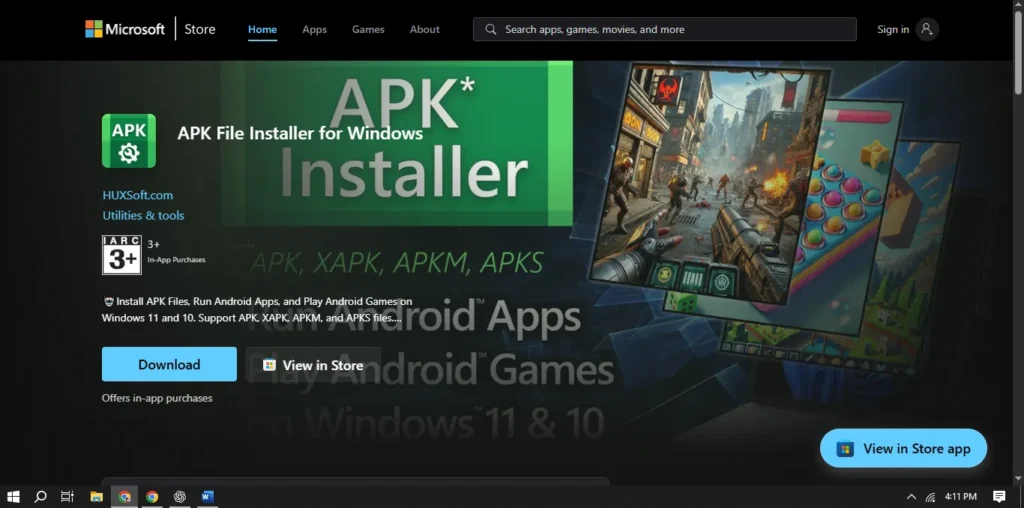
- Install APK Installer from the Microsoft Store.
- Launch the app and click “Open APK File”.
- Select the Tachiyomi APK file to install it.
- The app will be installed and appear in your Start menu.
Method 3: Using ADB Commands
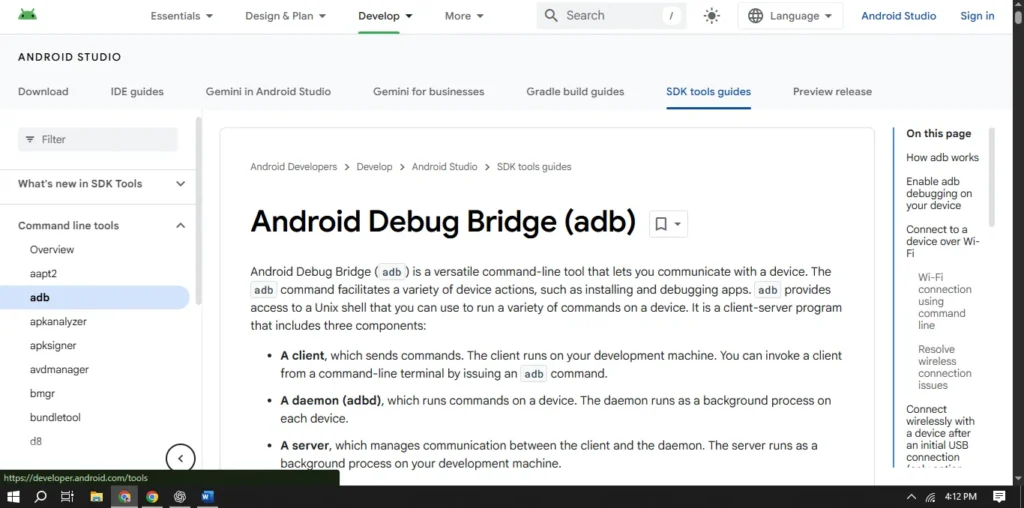
- Download SDK Platform Tools from the Android Developer website.
- Extract the ZIP file and place the Tachiyomi APK inside the same folder.
- Open the folder, type cmd in the address bar, and press Enter.
- Run the following commands in Command Prompt:
adb devices adb install tachiyomi.apk(Replacetachiyomi.apkwith your actual file name) - You’ll see a “Success” message once installed.
Conclusion
You’ve successfully installed Tachiyomi on your Windows 11 PC—no emulator needed! With WSA, Android apps now feel like native Windows applications.
If you run into any issues or have questions, feel free to drop them in the comments section. Happy reading!

![How to Move Tachiyomi Backup to iOS [Step-by-Step Guide]](https://tachiyomii-apk.com/wp-content/uploads/2026/02/How-to-Add-Extensions-to-Tachiyomi-5-768x517.webp)